Every tab, every toggle, and when to actually use them. Just want the quick install?
The setup steps are enough. Come here to find out what a specific button,
toggle or tab does.
The patcher never redistributes any original Actions & Stuff asset. Instead it ships small binary diffs
(.vcdiff, applied with xdelta3) that transform
your own legally-owned copy into the RTX-enhanced version:
📦Your A&S copy
⚙️xdelta3 + .vcdiff
✨A&S Enhanced for RTX .mcpack
Two .vcdiff files exist per patch version, because there are two possible starting points:
encrypted.vcdiffDiffed against your raw, still-DRM-encrypted Marketplace cache.
Used by Marketplace mode
decrypted.vcdiffDiffed against an already-decrypted, plain pack: a .zip / .mcpack you downloaded or extracted yourself.
Used by Zip / McPack mode
Both patches reconstruct the exact same final pack. The tool just picks whichever one matches the format of the
pack you're feeding it, so it never has to touch DRM-protected bytes it can't otherwise read.
🚀Patch Modes
Pick a mode on the Patcher tab. The first is always available; the other two require
Advanced Mode (bottom-left toggle in the sidebar).
Select Patch Mode:
🏪 Marketplace Default
Auto-detects your purchased Actions & Stuff pack directly from Minecraft's premium_cache
(works for the Microsoft Store/UWP and GDK/Xbox app installs). This is the mode almost everyone should use,
no manual file picking required.
Choose Auto-Detect or Manual Select for the target patch/pack version.
Optionally leave Delete older patched versions automatically on to keep old installs from piling up.
Click Apply RTX Patch.
📂 Zip / McPack Advanced Mode
For when you already have Actions & Stuff as a .zip or .mcpack file (e.g. downloaded
rather than pulled from the Marketplace cache). The patcher extracts it, strips Mojang's licensing metadata
(contents.json, signatures.json, etc.), injects its own manifest, and applies
decrypted.vcdiff.
🔧 Custom Patch Advanced Mode
Lets you manually point at a specific source pack (folder or zip), target output
path, and a specific .vcdiffpatch file, bypassing the normal auto-detection entirely.
Useful for testing a patch you (or a patch developer) just built with the
Create Patch tool, or for applying an older/specific patch version by hand.
Tip
After any mode finishes, click Install Pack to copy the result straight into your Minecraft resource_packs folder, no manual extraction needed.
📦Extract Brarchives Beta
Some Actions & Stuff source material ships assets bundled inside a custom container format instead of as
normal loose files: a __brarchive folder containing *.brarchive files, each of which is
really several real files packed together with a small binary header.
What it does
Recursively scans the target folder for __brarchive directories, unpacks every
.brarchive file back into a normal file at the path it's named after (stripping the
.brarchive suffix), then deletes the now-empty containers and leftover pointer files.
Where it lives
Utilities → Extract Brarchives, a standalone tool you point at any folder directly.
Handy for inspecting what's inside a __brarchive folder.
If a folder doesn't have a __brarchive anywhere in it, running this is a harmless no-op, which is
why it's still marked Beta.
🧰Tools Reference
Everything below lives behind the sidebar tabs. Advanced Mode (bottom-left toggle) is required to
see the Utilities menu and a few of the Patcher-tab controls.
🧹
Cleaner
Scans every detected Minecraft install (Microsoft Store/UWP, GDK/Xbox app, and per-world
resource_packs / development_resource_packs folders) for leftover Actions & Stuff
pack directories from previous patches, and lets you delete the ones you select. Use it if you've patched
several times and want to reclaim disk space, or before re-patching to avoid stale duplicate packs in-game.
🎛️
RTX Settings
Reads and writes your Minecraft options.txt directly, so you can flip RTX-relevant graphics
settings (graphics_mode, graphics_api, ray tracing/deferred view distance, upscaling
mode & percentage, etc.) without hunting through Minecraft's menus. Set Best Settings applies the
recommended RTX configuration in one click; Apply Settings saves whatever you've
edited manually. Pick which options.txt profile to target first if you have more than one
Minecraft install or user profile.
🛠️
Utilities Advanced Mode
Standalone tools that don't run the full patch pipeline, useful for patch developers or troubleshooting.
• Deterministic ZIP Packer
Compresses a folder into a .zip / .mcpack with fixed timestamps (Jan 1 1980) and
no compression (stored). Two runs over identical input always produce a byte-identical archive. That
determinism keeps the xdelta diffs reproducible and small, so it's used everywhere the patcher zips for diffing.
• Extract ZIP / MCPack
Extracts any .zip or .mcpack archive to a folder, automatically unwrapping a
single redundant top-level folder if the archive has one (e.g. MyPack-main/... becomes just
the pack contents).
• Extract Brarchives (standalone)
The same brarchive extraction, pointed at any folder you choose,
independent of a patch run. Good for inspecting or unpacking a __brarchive folder without
doing anything else.
This is how new patch versions actually get built, for custom or new patches. It's not something regular
users need. It takes four inputs:
1
Target FolderYour finished, modified "Actions & Stuff RTX" pack: the result you want end users to end up with.
2
Source Decrypted FolderA vanilla, already-decrypted baseline copy of the same Actions & Stuff version (no DRM).
3
Source Encrypted FolderThe same vanilla version, but straight from premium_cache, still DRM-encrypted.
Output DirectoryWhere the finished .vcdiff files and patch_config.json get written.
Plus Pack Version / Patch Version (used to name the output folder and
populate patch_config.json), and one toggle:
Inject Custom ManifestWrites the patcher's own manifest.json into both the decrypted baseline and the target folder before diffing, so the shipped pack always ends up with the correct custom pack identity.
Clicking Create Patches produces encrypted.vcdiff,
decrypted.vcdiff and a patch_config.json (pack/patch version plus validation stats
used by Marketplace auto-detection) in a new
Actions & Stuff for RTX <pack version> V<patch version> folder under your output directory.
💬
Support
Discord invite links (community + BetterRTX), and the Bug Report form. The bug reporter can
optionally attach:
Your application log
The pack you patched
A Minecraft content log, with usernames scrubbed from file paths
Recent GPU driver events
A hardware summary (GPU / CPU / RAM / BetterRTX preset)
Every item is opt-in per checkbox, and all are tied to a random install ID rather than anything personally
identifying. See App Settings → Privacy for the underlying telemetry consent controls.
📚
Patch Library Maintainers only
Patches are downloaded from a separate patch library repo
rather than shipped inside the patcher, so a new patch reaches everyone without a patcher update. You can
publish one straight from the Create Patch tool.
📦
Release Builder Maintainers only
Version bump and build automation for cutting a new patcher release: edit the app version, build MSI/NSIS
installers and/or a portable .exe, and sort the resulting artifacts into a
Releases/vX.Y.Z folder with the updater manifest signature injected automatically. Not relevant
unless you're publishing a new patcher build.
⚙️App Settings Reference
What every group on the App Settings tab controls.
General
Default Patcher Mode
Which patch mode is pre-selected on launch.
Enable Advanced Mode UI
Reveals Zip/Custom patch modes, the Utilities tab, and other advanced controls.
Opt-in to Beta Updates
Lets the in-app updater offer beta/alpha releases, not just stable.
Patcher Behaviors
Clean Old Patch Remnants
Runs the Cleaner scan automatically before every patch.
Keep only the most recently used patch
After a successful patch, delete other downloaded patches to save space. Off by default.
Console
Console height
How tall the execution output console is. You can also drag the grip in its bottom-right corner.
Downloaded Patches
Remove / Remove all downloads
Delete cached patch downloads. They are fetched again automatically when next needed; bundled patches are never touched.
Patch library repo folder / Publish after creating
Where to publish new patches, and whether to publish automatically. See the Patch Library.
Bug Reporter Defaults
Include Application Log / Pack / Content Log / Driver Events / Hardware Info
Default state of the matching checkboxes on the bug report form.
Privacy
Telemetry consent, Delete My Data
Opt in or out of anonymous hardware pings, and erase your server-side data (rotates your local install ID).
🩹FAQ & Troubleshooting
The most common issues, sorted by category. Nothing here match what you're seeing? Ask in Discord or send a Bug Report.
📥 Installation & Patcher Errors
Error "Pack not found" / the patcher can't locate the resource pack▼
This happens when the patcher can't automatically find your premium cache folder. Open %AppData%/Minecraft Bedrock/premium_cache/resource_packs yourself and look for the folder containing the A&S logo (it'll have a long, cryptic name). If it's genuinely missing, reinstalling the pack from the Marketplace resets the folder structure.
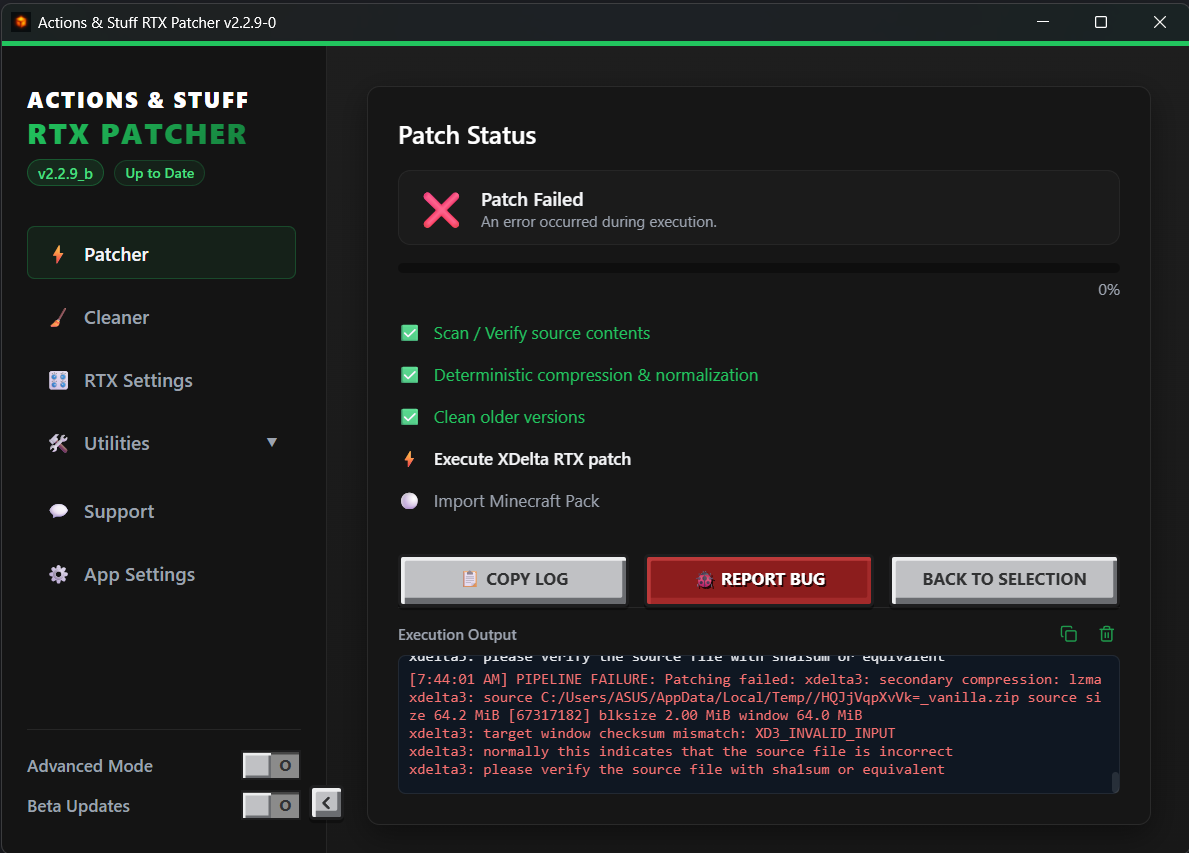
These xdelta errors are almost always a version mismatch, the pack version is either too old or too new for the patch you picked. Check that your version is supported by the patch you're applying. If you're patching a .zip, this can also mean the source file itself was modified, make sure you're using an untouched, original download.
Nothing happens when I click Apply RTX Patch▼
Check the process log (Advanced Mode) for the actual error, and confirm you own a legitimate copy of Actions & Stuff in one of the supported formats.
I just patched, but Minecraft still shows the old pack▼
Make sure your resource pack load order matches the setup steps, and run the Cleaner to remove stale duplicates.
🎨 Visual Bugs & Texture Issues
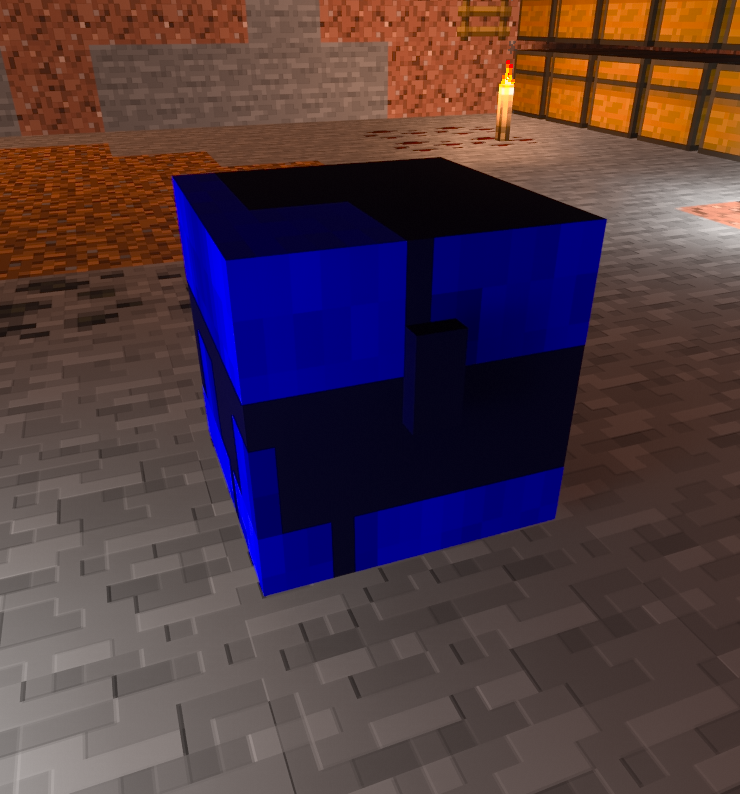
Invisible or broken textures right after joining a world (beds, chests, mobs)▼
Render inconsistencies occasionally happen while a world is still loading. Restarting the game or the world once or twice usually resolves it on its own.
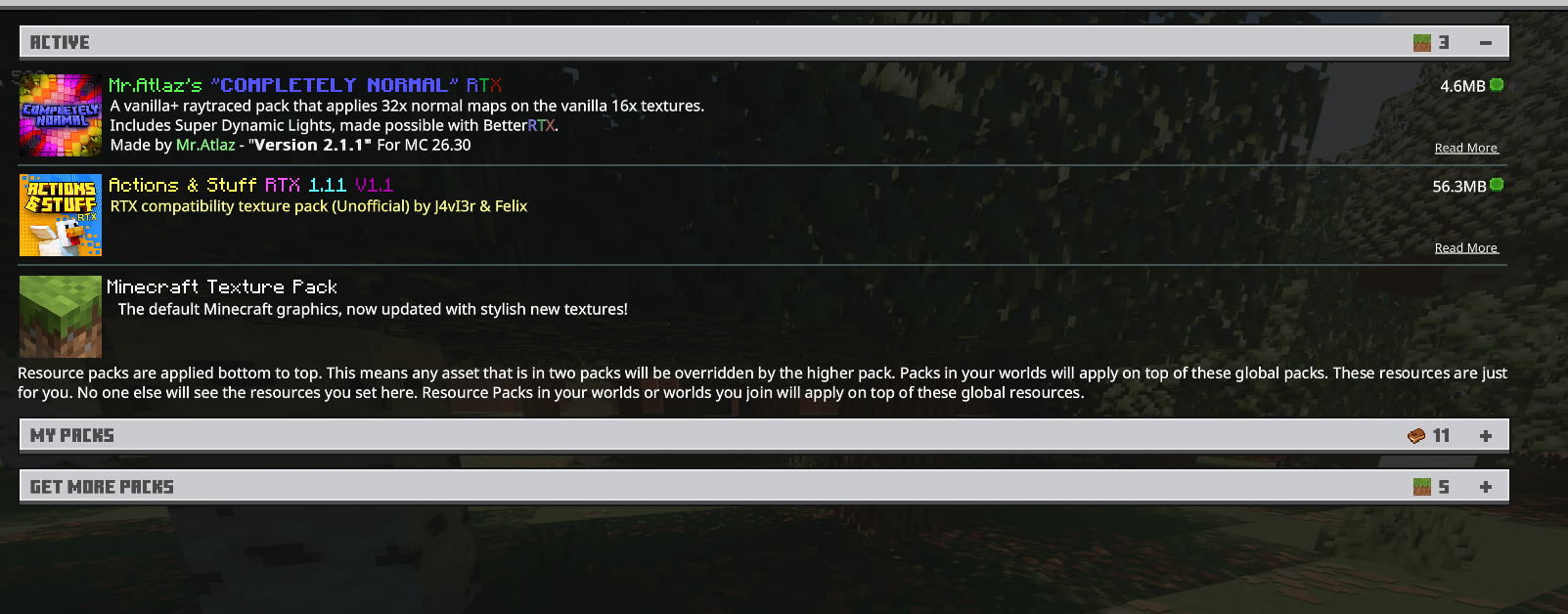
This points to an incorrect load order or a missing base RTX pack. Put the A&S RTX Pack at the very top of your resource pack list, and make sure BetterRTX is installed correctly.
My skin or cape isn't loading▼
By default the A&S RTX Pack overrides the player entity, which breaks personal skins. Edit ccc3ed4bb82925a91cd4.json in the pack files and change the default and cape texture entries back to textures/entity/player and textures/entity/cape.
Glowing/emissive textures don't work with Vibrant Visuals▼
Vibrant Visuals doesn't support the MER (Metalness/Emissive/Roughness) texture technology the pack relies on for glow. Use a fully compatible RTX pack instead, such as Completely Normal RTX.
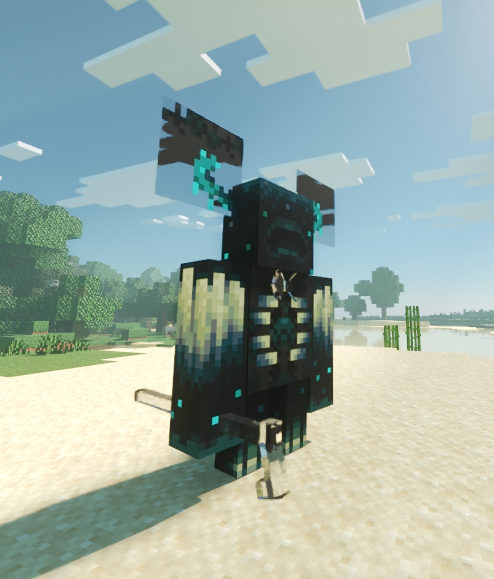
Warden texture is bugged (ears, bowtie, etc.)▼
The Warden is only fully supported in one patcher mode. Make sure Full Experience is selected instead of Custom Experience.
🎮 Game Crashes & Performance
Black screen when loading a world in fullscreen▼
A known visual Minecraft bug. Launch the game in windowed mode before loading the world.
Massive FPS drops or crashes in specific areas▼
Frequently caused by Armor Stands rendering incorrectly, specifically leather boots with the "Rib Armor Trim" placed on an armor stand. Avoid or remove those in RTX worlds.
🌐 Multiplayer & Realms
Texture issues that only happen in multiplayer▼
On servers or friends' worlds, entity textures (chests, shulker boxes, horses, etc.) frequently break. Multiplayer worlds often stack many server-side resource packs at once, which hits the RTX engine's texture limits. There's currently no reliable client-side fix for this.
Still stuck?
Ask in the Discord or check the pinned FAQ thread.